
Have you ever missed the start of your favorite show because you lost track of time while scrolling through endless channels? Managing your daily entertainment should feel effortless, not like a chore. Using a reliable tivimate epg is the secret to staying organized in today’s fast-paced digital landscape.
This tivimate epg guide helps you transform your streaming experience into a seamless journey. By setting up your schedule correctly, you ensure that every program is right at your fingertips when you need it. If you are just getting started, you can follow our tivimate setup guide to optimize your device for the best performance.
Proper scheduling is essential for anyone who values their time and wants to enjoy high-quality content without the stress of manual searching. Let’s dive into how you can master your viewing habits today.
Key Takeaways
- Understand the importance of a structured program schedule for better viewing.
- Learn how to configure your settings for automatic updates.
- Discover why a clear guide is the foundation of a great streaming experience.
- Troubleshoot common issues to keep your data current and accurate.
- Maximize your entertainment time by reducing manual navigation.
Understanding the Role of EPG in Tivimate
Navigating your favorite television channels becomes a seamless experience when you understand the mechanics behind your program guide. A well-configured tivimate epg transforms a chaotic list of channels into an organized, easy-to-read schedule for your daily entertainment.
Why Electronic Program Guides Matter for IPTV
An Electronic Program Guide, or EPG, acts as the digital map for your streaming service. Without it, you are left guessing what is currently airing or what might be scheduled for later in the evening.
By utilizing a reliable tivimate epg, you gain the ability to browse through live channels with incredible precision. This feature allows you to plan your viewing habits, set reminders for your favorite shows, and avoid missing out on live events.
How Tivimate Processes EPG Data
The application works by fetching data from a remote server, usually in an XMLTV format. Once the app receives this information, it parses the raw text to match specific programs with their corresponding channel IDs.
This technical process ensures that the tivimate epg displays accurate metadata, such as show titles, descriptions, and start times. The interface then renders this data into a clean, user-friendly grid that updates automatically in the background.
| Feature | Standard View | EPG Enhanced View |
|---|---|---|
| Channel Navigation | Manual Scrolling | Categorized Search |
| Program Info | Not Available | Full Metadata |
| Scheduling | None | Reminders & Recording |
| Data Source | Static List | Dynamic XMLTV |
Preparing Your Tivimate EPG Setup
Before you start your tivimate epg setup, it is essential to gather all your account details in one place. Taking a few minutes to organize your information now will save you significant time and frustration during the configuration process. A well-prepared user is much more likely to enjoy a seamless experience with their home entertainment system.
Gathering Necessary Credentials and URLs
To begin, you must locate the specific connection details provided by your IPTV service. Most providers supply an M3U playlist URL and a separate EPG URL, which are the building blocks for your guide. You can find a step-by-step how to get a brilliant EPG working in your to ensure you have the correct formats ready. Organization is key, so consider saving these links in a simple text file on your computer or mobile device for easy access.
Verifying Your IPTV Subscription Compatibility
Not every IPTV service provides the same level of support for guide data. You should verify that your subscription includes a valid XMLTV link, as this is the standard format for most modern players. If your provider does not offer a direct link, you may need to look for alternative solutions or contact their support team to confirm compatibility. Testing your links in a web browser is a smart way to verify that the server is active and returning data before you attempt to input it into the application.
The following table outlines the common requirements you should check before finalizing your configuration:
| Requirement | Description | Importance |
|---|---|---|
| M3U Playlist URL | The primary channel list link | High |
| EPG XMLTV URL | The guide data source | High |
| Subscription Status | Active account credentials | Critical |
| Server Stability | Reliable provider uptime | Medium |
By confirming these details, you ensure that your tivimate epg integration remains stable and accurate. Taking these preliminary steps prevents common connection errors and allows you to enjoy your favorite programs without interruption.
Adding and Configuring Your Tivimate EPG Source
Now that your account is ready, it is time to focus on the technical side of your tivimate epg setup. A properly configured guide transforms your viewing experience by providing real-time scheduling information for all your channels.
Navigating to the EPG Settings Menu
To begin, open the application and navigate to the main dashboard. Select the “Settings” icon, which is usually represented by a gear symbol in the top corner.
From there, locate the “EPG” tab within the menu list. This area serves as the central hub for managing every tivimate epg source you intend to use for your playlists.
Inputting the EPG URL Correctly
Once you are inside the EPG menu, select “Add EPG Source” to begin the process. You will be prompted to enter your specific tivimate epg url provided by your service provider.
Ensure that you type the address exactly as it appears, as even a minor typo can prevent the data from loading. After entering the link, confirm your changes to allow the application to begin the synchronization process.
Common Syntax Errors to Avoid
Many users encounter issues because of simple mistakes during the input phase. Keep these common pitfalls in mind to ensure a smooth connection:
- Extra spaces: Ensure there are no leading or trailing spaces in the URL field.
- Protocol prefixes: Always include the “http://” or “https://” prefix at the start of the link.
- Case sensitivity: While many servers are flexible, it is best practice to match the exact casing of the provided link.
Managing Multiple EPG Sources Simultaneously
If you subscribe to multiple services, you can easily add more than one guide source to your setup. The application allows you to stack these sources to ensure that every channel in your list has corresponding program information.
To manage these effectively, use the “EPG Sources” list to prioritize which link the application should check first. This strategic organization ensures that your guide remains accurate and fully populated throughout the day.
Optimizing EPG Data for Better Performance
A well-configured guide is the backbone of any high-quality home entertainment system. To maintain a high-performance streaming setup, it is necessary to fine-tune how your tivimate epg source interacts with your specific playlists. Small adjustments can lead to a much smoother and more reliable user experience.
“Efficiency is doing things right; effectiveness is doing the right things.”
Adjusting Update Intervals for Fresh Content
Keeping your program information current is vital for avoiding outdated schedules. You should navigate to the settings menu to modify the update frequency of your tivimate epg source. Setting a balanced interval ensures that your guide reflects the latest broadcast changes without putting unnecessary strain on your network.
Assigning EPG Sources to Specific Playlists
Managing multiple services requires clear organization to prevent data conflicts. You can manually assign a specific tivimate epg source to each of your playlists within the application settings. This targeted approach guarantees that every channel displays the correct metadata and program details.
Handling Time Shift Offsets for Accurate Scheduling
Sometimes, the broadcast time provided by your service may not align perfectly with your local clock. You can manually configure time shift offsets to ensure that your local time matches the schedule provided by your IPTV service. This simple fix is essential for setting accurate recording timers and ensuring you never miss your favorite shows.
Advanced Tivimate EPG Integration Techniques
Achieving perfect channel data requires moving beyond basic settings. While automatic updates work for most users, advanced tivimate epg integration allows you to take full control of your viewing experience. By utilizing custom files, you can resolve persistent display issues and ensure every channel shows the correct metadata.
Using XMLTV Files for Custom Programming
If your provider’s default data is incomplete, switching to a custom XMLTV file is a game-changer. These files act as a structured database that maps specific program information to your channel list. By hosting your own XMLTV file, you gain the ability to curate exactly what appears in your guide.
This method is particularly useful for users who combine multiple sources into one interface. It ensures that your tivimate epg integration remains consistent, even when your primary provider experiences data gaps. You simply need a reliable URL or a local file path to point the application toward your custom data source.
Mapping Channels Manually When Auto-Match Fails
Sometimes, the automatic matching algorithm fails to link a channel to its corresponding program data. This usually happens when channel names in your playlist do not perfectly match the names provided by the EPG source. When this occurs, you must perform a manual override to fix the display.
Step-by-Step Manual Channel Mapping
Follow these steps to ensure your tivimate epg integration is accurate for every single channel:
- Open the Tivimate settings menu and navigate to the TV Guide section.
- Select the specific channel that is currently missing data or showing incorrect information.
- Choose the Assign EPG source option to view available data streams.
- Search for the correct channel name within the list and confirm your selection to link the data manually.
Once you complete these steps, the application will prioritize your manual selection over the automatic match. This reliable approach guarantees that your schedule remains accurate, providing you with a seamless and professional television experience.
Troubleshooting Common Tivimate EPG Not Working Issues
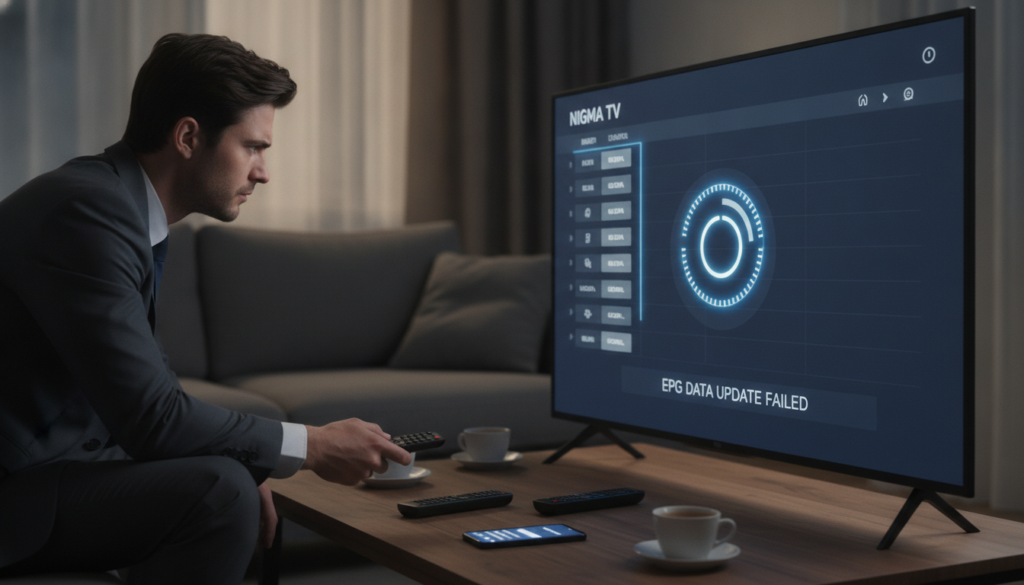
When your program information fails to load, a few quick steps can resolve the issue. It is common to experience a tivimate epg not working scenario at some point during your streaming journey. Most of these glitches stem from minor software conflicts or temporary interruptions in data flow.
Identifying Network Connectivity Problems
The first step in your diagnostic process should always be checking your internet connection. If your device cannot reach the external servers, the guide data will fail to populate. Ensure that your streaming device is properly connected to your local network via Wi-Fi or a stable Ethernet cable.
Sometimes, a simple restart of your router can clear up hidden connectivity bottlenecks. If other streaming apps are working fine, the issue is likely isolated to your specific configuration rather than your home internet service.
Clearing Cache and Refreshing EPG Data
Outdated cache files often cause the guide to display incorrect information or stop updating entirely. You can force the application to fetch fresh data by clearing the internal cache within the settings menu. This action removes temporary files that might be corrupted or obsolete.
After clearing the cache, navigate to the update section to trigger a manual refresh. This process allows the application to pull the latest schedule directly from your provider. Performing this refresh regularly keeps your viewing experience smooth and accurate.
Verifying URL Validity and Server Status
If the guide remains empty, you must confirm that your tivimate epg url is still active and correct. A broken or expired link is a frequent culprit when the guide fails to load. Double-check every character in the address to ensure there are no typos or missing symbols.
You should also consider that the provider might be experiencing temporary server-side downtime. If the server is down, no amount of local troubleshooting will restore the data until the provider resolves the issue. Use the following table to help identify the root cause of your guide problems.
| Issue Type | Common Symptom | Recommended Action |
|---|---|---|
| Network | No data loading at all | Restart router and device |
| Cache | Old or partial data | Clear app cache and refresh |
| URL | “Failed to update” error | Verify tivimate epg url |
| Server | Global service outage | Contact your IPTV provider |
Effective Tivimate EPG Fix Strategies
When your program guide stops updating, finding a reliable tivimate epg fix becomes the top priority. While basic restarts often solve minor glitches, persistent issues require a more systematic approach to restore your viewing experience. These advanced methods ensure your guide remains accurate and functional for daily use.
Updating the Tivimate Application Version
Software developers frequently release updates to improve compatibility with modern data formats and fix known bugs. Running an outdated version of the application is a common cause of synchronization failures. Always ensure you are using the latest release to benefit from improved stability and performance patches.
You can check for updates directly through the application settings or the official app store on your device. Keeping your software current is a fundamental tivimate epg fix that prevents many compatibility issues before they start. This simple step often resolves complex data parsing errors automatically.
Checking for Provider-Side EPG Outages
Sometimes the problem does not originate within your local setup at all. If your IPTV provider experiences server-side outages, your guide data will fail to refresh regardless of your settings. You should verify if other users are reporting similar issues on community forums or social media platforms.
If the provider is undergoing maintenance, the only solution is to wait until their services return to normal. Attempting to force a refresh during an outage can sometimes lead to temporary IP blocks. Patience is often the best tivimate epg fix when the source itself is offline.
Resetting Playlist Data Without Losing Favorites
Persistent errors sometimes require a clean slate for your playlist data. You can clear the cache and reset the guide data without deleting your carefully curated list of favorite channels. This process forces the application to re-download fresh information from your provider’s server.
Navigate to the playlist settings and select the option to clear EPG data. This action removes corrupted files that might be blocking successful updates. By performing this tivimate epg fix, you effectively refresh the connection while keeping your personalized channel organization intact.
| Issue Type | Primary Cause | Recommended Fix |
|---|---|---|
| Outdated App | Version Mismatch | Update Application |
| Server Down | Provider Outage | Wait for Restoration |
| Corrupt Cache | Data Conflict | Reset Playlist Data |
| Sync Error | Time Offset | Adjust Time Shift |
Mastering Program Scheduling and Reminders
Once your setup is complete, you can start using your tivimate epg guide to manage your viewing habits like a pro. By utilizing these advanced tools, you ensure that you never miss a live event or a new episode of your favorite series. For those looking to optimize their setup further, you can find additional tips on improving your IPTV EPG experience to keep your data accurate.
Setting Up Recording Schedules via the Guide
Recording your favorite content is a straightforward process when you use the integrated interface. Simply navigate to the program you wish to capture, press the select button, and choose the Record option from the menu. This action creates an automated task that triggers the recording at the exact start time of the broadcast.
Using the Reminder Feature for Upcoming Shows
If you prefer to watch live, the reminder feature is your best friend. By selecting a future program in your tivimate epg guide, you can set a notification that alerts you just before the show begins. This ensures you are ready and settled in front of your screen exactly when the action starts.
Managing Your Scheduled Recordings Library
Keeping your library organized is essential for a smooth experience. You can access your list of pending tasks through the main menu, where you can review, edit, or cancel any scheduled events. This level of control allows you to maintain a clean and efficient viewing schedule throughout the entire week.
| Feature | Primary Benefit | User Action |
|---|---|---|
| Recording | Save content for later | Select “Record” in EPG |
| Reminders | Get notified for live TV | Select “Remind” in EPG |
| Library | Manage active tasks | Access “Recordings” menu |
Conclusion
Mastering your program guide settings remains the best way to unlock the full potential of your home entertainment setup. Accurate data ensures your favorite shows stay organized and ready for viewing at a moment’s notice.
You can achieve a smooth and reliable streaming experience by choosing the right tools for your device. Many users find that Nigma TV is the best IPTV Firestick because it integrates perfectly with top-tier players. This combination keeps your channel list updated and your navigation simple.
Take time to verify your settings and keep your firmware current to avoid common playback interruptions. A well-maintained system provides a stress-free way to enjoy live television every single day. We hope this guide helps you get the most out of your digital media library.