
Ultimate TiviMate Setup Guide (2026) – Install on Firestick, Android TV & Smart TV
Looking for the easiest way to install and configure TiviMate for your IPTV service? This complete TiviMate Setup Guide (2026) will walk you through every step, whether you’re using a Firestick, Android TV, Google TV, or another compatible device.
TiviMate is one of the most popular IPTV player apps thanks to its modern interface, smooth performance, and advanced features. It allows you to organize live TV channels, manage playlists, use an electronic program guide (EPG), and enjoy a premium viewing experience.
In this guide, you’ll learn how to install TiviMate, add your IPTV subscription using Xtream Codes API or an M3U playlist, optimize the best settings, and solve common issues. If you’re new to IPTV or simply want to get the most from TiviMate, this tutorial covers everything you need.
This TiviMate Setup Guide is designed for beginners and advanced IPTV users who want to install and configure TiviMate quickly and correctly.
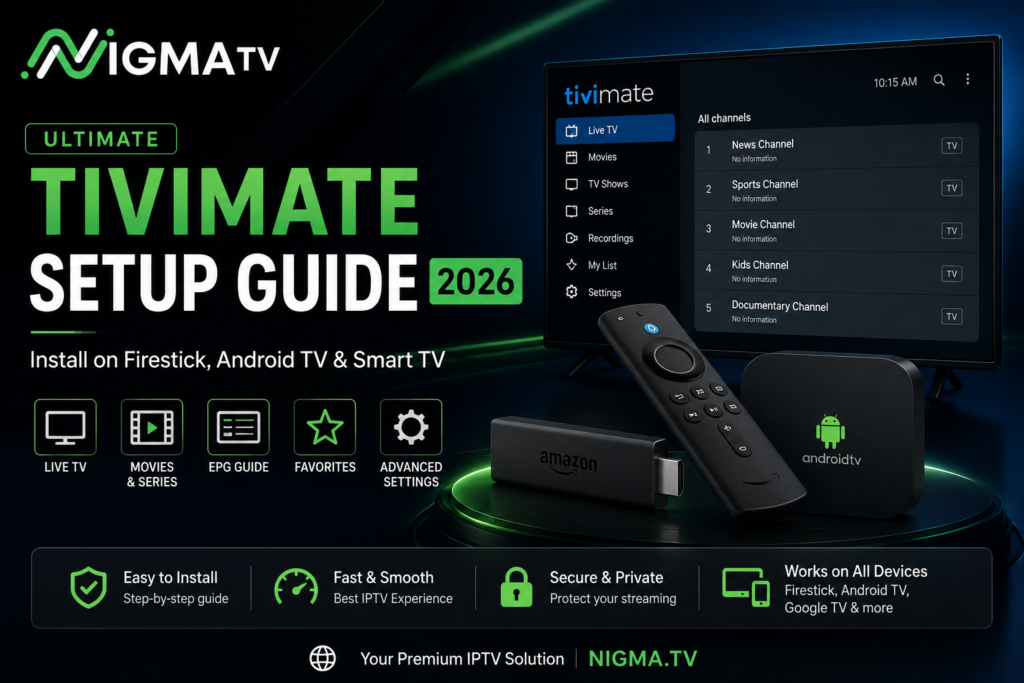
What Is TiviMate?
TiviMate is a powerful IPTV player designed mainly for Android TV, Google TV, and Amazon Fire TV devices. It doesn’t provide IPTV channels or subscriptions by itself. Instead, it allows users to connect their own IPTV service using an M3U playlist or Xtream Codes API.
Thanks to its clean interface and advanced playback features, TiviMate has become one of the most recommended IPTV players worldwide. It supports electronic program guides (EPG), favorites, multiple playlists, catch-up (when supported), recording, parental controls, and many other premium features.
Official TiviMate Website
Tivimate
Android TV
By following this TiviMate Setup Guide, you’ll learn how to install the app, add playlists, and optimize the best settings for smooth IPTV streaming.
Key Features of TiviMate
TiviMate Setup Guide offers a premium IPTV viewing experience with powerful features designed for both beginners and advanced users.
Main Features
- Modern and user-friendly interface
- Support for multiple IPTV playlists
- Xtream Codes API login
- M3U Playlist support
- Electronic Program Guide (EPG)
- Favorites and channel grouping
- Catch-up TV (if supported by your provider)
- Recording for supported devices
- Parental controls
- Multiple player support
- Automatic playlist updates
- Picture-in-Picture (Premium)
TiviMate Free vs Premium
| Feature | Free | Premium |
|---|---|---|
| Live TV Playback | ✅ | ✅ |
| Multiple Playlists | ❌ | ✅ |
| EPG Support | Limited | ✅ |
| Recording | ❌ | ✅ |
| Catch-up TV | ❌ | ✅ |
| Favorites | Basic | Advanced |
| Picture in Picture | ❌ | ✅ |
| Automatic Updates | ❌ | ✅ |
Devices Compatible with TiviMate
TiviMate works on most Android-based streaming devices, including:
- Amazon Fire TV Stick
- Fire TV Cube
- Android TV
- Google TV
- NVIDIA Shield TV
- Chromecast with Google TV
- Android TV Boxes
- Sony Android TVs
- Philips Android TVs
- Xiaomi TV Box
TiviMate is not officially available for iPhone, iPad, LG webOS TVs, or Samsung Tizen TVs.
Internal Links :
How to Install TiviMate on Firestick
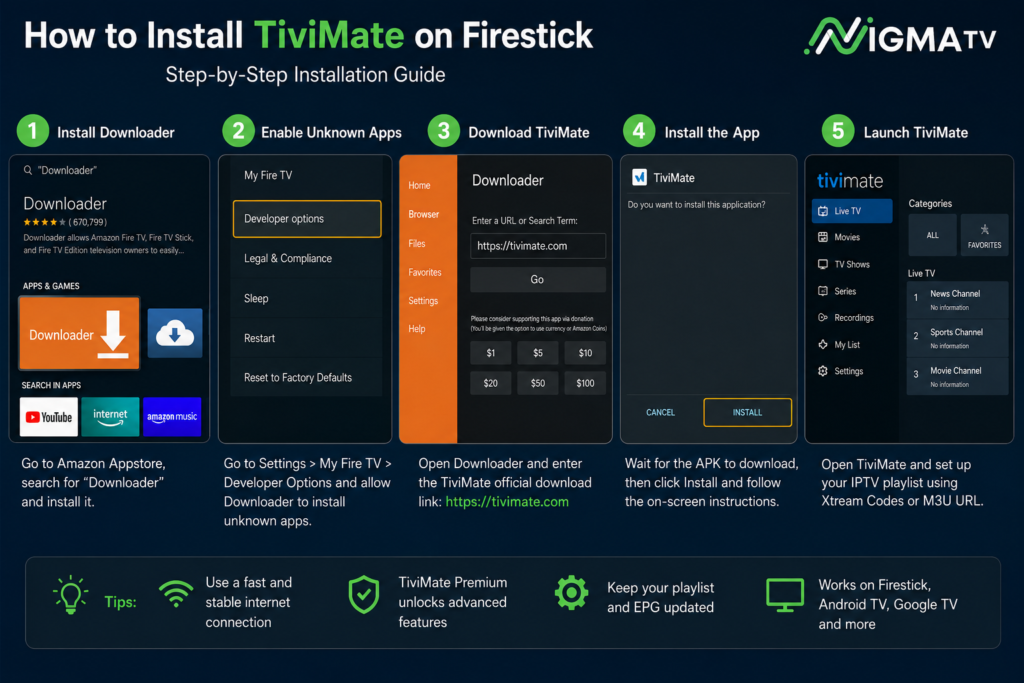
Installing TiviMate on Firestick takes only a few minutes. Since the app isn’t available directly on the Amazon Appstore, you’ll need to sideload it using the Downloader app.
Step 1: Install Downloader
Open the Amazon Appstore, search for Downloader, and install it.
Step 2: Enable Unknown Apps
Go to Settings → My Fire TV → Developer Options and allow the Downloader app to install unknown applications.
Step 3: Download TiviMate
Open Downloader and enter the official TiviMate download link from the developer’s website.
Step 4: Install the App
Wait for the APK to download, then follow the on-screen instructions to complete the installation.
Step 5: Launch TiviMate
Open the app and continue with the IPTV setup using either Xtream Codes API or an M3U Playlist.
How to Add an IPTV Playlist to TiviMate
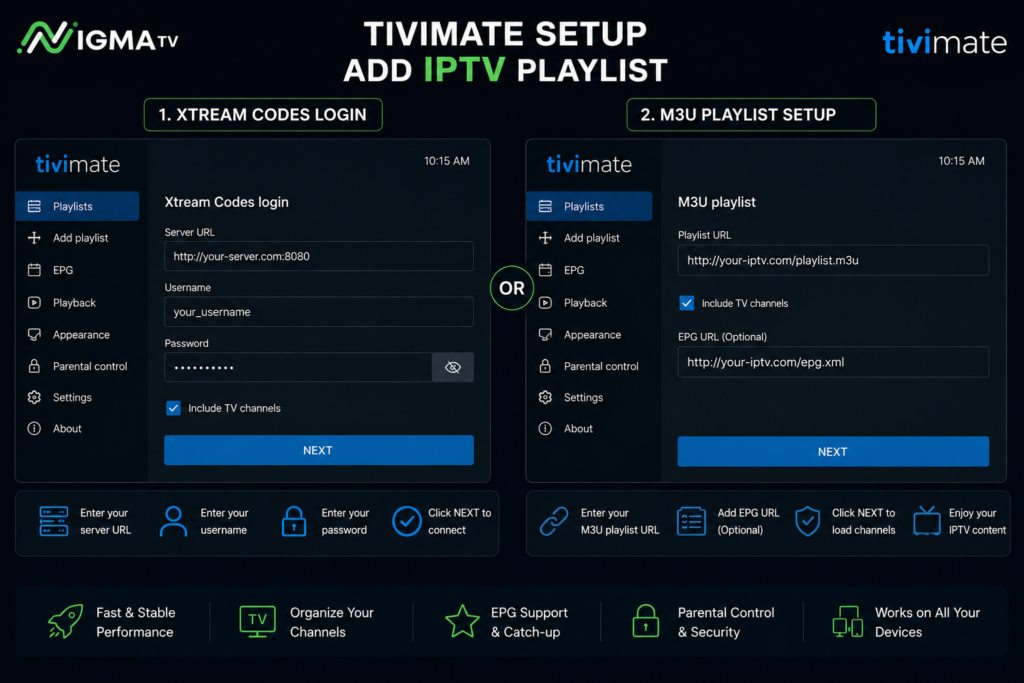
This TiviMate Setup Guide supports both Xtream Codes API and M3U Playlist setup methods, making it suitable for almost every IPTV provider.
After installing TiviMate, you’ll need an IPTV subscription from your provider.
TiviMate supports two popular login methods:
- Xtream Codes API
- M3U Playlist URL
Choose the login method provided by your IPTV service.
Login Using Xtream Codes API
If your IPTV provider gives you Xtream Codes credentials, select Xtream Codes Login and enter:
- Server URL
- Username
- Password
Tap Next, and TiviMate will automatically download your channels, movies, series, and EPG.
Add an M3U Playlist
If your provider supplies an M3U URL:
- Select M3U Playlist
- Paste your playlist URL.
- Wait while TiviMate imports your channels.
- Finish the setup.
Your IPTV content will now be available inside TiviMate.
Best TiviMate Settings for IPTV
For the best IPTV experience, consider these recommended settings:

- Enable automatic EPG updates.
- Organize channels into Favorites.
- Use Hardware Video Decoder when available.
- Set a larger EPG cache for smoother browsing.
- Enable automatic playlist updates.
- Customize the TV guide layout for faster navigation.
- Use parental controls if multiple users access the device.
TiviMate Tips and Tricks
Want to get the most out of TiviMate? These simple tips can improve performance and make your IPTV experience much smoother.
Keep Your Playlist Updated
Refresh your IPTV playlist regularly to make sure you always have the latest channels, movies, and TV series provided by your IPTV service.
Update the EPG Frequently
Updating the Electronic Program Guide (EPG) ensures that channel schedules remain accurate and easy to browse.
Organize Your Favorite Channels
Create a Favorites list to access your most-watched channels quickly without scrolling through hundreds of options.
Backup Your Configuration
If you’re using TiviMate Premium, create a backup of your settings before switching devices or reinstalling the app.
Keep TiviMate Updated
Always install the latest version of TiviMate to benefit from new features, performance improvements, and bug fixes.
Use a Stable Internet Connection
For the best IPTV streaming experience, use a fast and stable internet connection. A reliable network helps reduce buffering and improves video quality.
Common TiviMate Problems and Solutions
Even though TiviMate is one of the best IPTV players available, users may occasionally experience technical issues. Here are the most common problems and how to fix them.
Buffering or Freezing
- Check your internet connection.
- Restart your Firestick or Android TV.
- Update your IPTV playlist.
- Try using a VPN if your ISP is throttling IPTV traffic.
Playlist Not Loading
- Verify your Xtream Codes credentials or M3U URL.
- Make sure your IPTV subscription is active.
- Refresh the playlist from the settings menu.
EPG Not Working
- Confirm that your IPTV provider includes an EPG URL.
- Refresh the EPG manually.
- Wait a few minutes for the guide to download completely.
Login Failed
- Double-check your server URL, username, and password.
- Contact your IPTV provider if the credentials are no longer valid.
Frequently Asked Questions
Is TiviMate free?
Yes. TiviMate offers a free version with basic features, while TiviMate Premium unlocks advanced features such as multiple playlists, recording, and customization.
Does TiviMate provide IPTV channels?
No. TiviMate is only an IPTV player. You’ll need an IPTV subscription from a provider to watch live TV channels.
Is TiviMate available for iPhone?
No. TiviMate is designed primarily for Android TV, Google TV, Fire TV, and Android-based streaming devices.
Which login method is better?
Both Xtream Codes API and M3U Playlist work well. Xtream Codes is generally easier to manage because playlists and EPG update automatically.
Can I use multiple IPTV subscriptions?
Yes. TiviMate Premium allows you to add and manage multiple IPTV playlists in one application.
After completing this TiviMate Setup Guide, your IPTV player should be fully configured and ready to use with your subscription.
Tips for Getting the Best Performance in TiviMate
To enjoy the best IPTV streaming experience, keep your playlists updated, refresh your EPG regularly, organize your favorite channels, and use a stable internet connection. If available, enable hardware decoding for smoother playback and keep the TiviMate app updated to the latest version.
Final Thoughts
TiviMate remains one of the best IPTV player applications in 2026 thanks to its modern interface, fast performance, and advanced customization features. Whether you’re using Firestick, Android TV, Google TV, or another compatible device, following this guide will help you install TiviMate, configure your IPTV subscription, and enjoy a smooth streaming experience.
If you’re looking for more IPTV tutorials, be sure to check out our complete guides on IPTV Smarters Pro Setup, Best IPTV for Firestick, and Best IPTV USA 2026 to improve your streaming experience.