
IPTV Smarters Pro Setup Guide USA Step-by-Step
Are you ready to elevate your home entertainment experience? Many viewers across the country look for reliable ways to organize their digital media libraries. Our IPTV Smarters Pro setup guide USA offers a clear path to help you configure your streaming interface with ease.
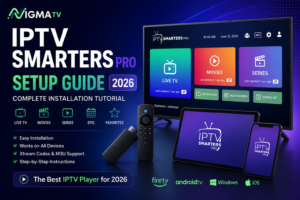
Efficiency is key when you want to access your favorite content without technical headaches. By following these IPTV Smarters Pro setup steps USA, you can transform any compatible device into a powerful, centralized media hub. We focus on simple, legal methods to ensure your viewing remains smooth and uninterrupted.
Whether you are a tech enthusiast or a casual viewer, this walkthrough covers everything from the initial download to advanced configuration settings. Let’s get your system running perfectly so you can enjoy your media exactly how you like it.
Key Takeaways
- Learn the complete process for configuring your streaming interface.
- Discover how to turn your device into a high-performance media center.
- Follow legal and efficient methods for a better viewing experience.
- Master both basic installation and advanced settings.
- Save time with our easy-to-follow, step-by-step instructions.
Introduction to IPTV Smarters Pro
IPTV Smarters Pro has become a household name for cord-cutters across the United States. Whether you are a tech enthusiast or a casual viewer, following a reliable IPTV Smarters Pro setup guide USA ensures you get the most out of your streaming experience.
What is IPTV Smarters Pro?
Developed by Tech Smarters Private Limited, this application serves as a professional-grade media player. It is important to note that the software does not host any content itself; instead, it acts as a bridge between your subscription and your screen.
The app organizes your live TV, movies, and series into a single, highly intuitive interface. By centralizing your media, it removes the clutter often found in standard streaming menus.
Benefits of Using IPTV Smarters
Users enjoy a variety of advanced features that make home entertainment more flexible. Key advantages include multi-screen viewing, which allows you to watch several channels at once, and robust parental controls to keep your content family-friendly.
The platform also supports catch-up features, ensuring you never miss your favorite shows. These tools provide a versatile environment for managing your digital library with ease.
Supported Devices and Operating Systems
Compatibility is a major strength of this software, allowing it to run on a wide array of hardware. When you look for IPTV Smarters Pro setup tips USA, you will find that the app is optimized for several popular platforms:
- Android Phones and Tablets: Full support for mobile viewing.
- Amazon Firestick: A favorite for living room streaming setups.
- Smart TVs: Compatible with various major television operating systems.
By choosing the right device, you ensure a smooth and stable performance for all your media needs. The interface remains consistent across these platforms, providing a familiar experience regardless of your hardware choice.
Prerequisites for Setup
Preparing your home network and device is a vital step in this IPTV Smarters Pro tutorial. Taking a few moments to verify your technical environment ensures that your future streaming sessions remain smooth and free of interruptions.
Internet Connection Requirements
A stable and fast internet connection serves as the backbone of your streaming experience. High-definition content requires a consistent flow of data to prevent buffering or sudden drops in quality.
For standard high-definition streams, you should maintain a minimum speed of 10 Mbps. If you plan to watch 4K ultra-high-definition content, your network must support at least 25 Mbps to ensure optimal playback performance.
Compatible IPTV Subscription
It is important to remember that this application functions strictly as a media player. It does not host or provide any television channels, movies, or live content on its own.
You must have an active subscription from a third-party provider to access media. Ensure your login credentials, such as your username, password, and server URL, are readily available before you begin the IPTV Smarters Pro setup steps USA.
Device Preparation
Before installing the software, check that your device has sufficient storage space available. Clearing out unnecessary files or unused applications helps the system run more efficiently during heavy streaming tasks.
Additionally, verify that your device is connected to a stable network, preferably via a wired Ethernet cable if possible. This simple step significantly reduces latency and improves overall reliability.
| Content Quality | Minimum Speed Required | Recommended Stability |
|---|---|---|
| Standard Definition (SD) | 5 Mbps | High |
| High Definition (HD) | 10 Mbps | Very High |
| 4K Ultra HD | 25 Mbps | Excellent |
Installing IPTV Smarters Pro on Android Devices
Setting up your streaming application on Android is a quick process that requires only a few basic steps. By following this IPTV Smarters Pro tutorial, you can ensure your device is ready for high-quality media playback in just a few minutes.
Finding and Downloading the App
The most reliable way to acquire the software is through the official Google Play Store. This ensures that you receive the most secure and updated version of the application for your device.
- Open the Google Play Store on your Android smartphone or tablet.
- Use the search bar at the top to look for the application by name.
- Locate the official icon in the search results to ensure you are downloading the correct software.
Installation Steps
Once you have found the correct page, the installation process is entirely automated. Simply tap the “Install” button to begin the download.
Your device will handle the rest of the work in the background. Once the progress bar completes, you will see an “Open” button appear, signaling that the app is ready for its first launch.
Initial Configuration Overview
When you open the app for the first time, you will need to perform a brief setup. This IPTV Smarters Pro user manual approach helps you optimize the interface for your specific hardware.
You will be prompted to select a profile type, such as TV or Mobile. Choosing the correct profile ensures that the menu layout is easy to navigate on your screen. After this selection, you are ready to input your subscription details and begin streaming your favorite content.
Setting Up IPTV Smarters Pro on iOS Devices
Apple users can easily access their preferred content by following a few simple steps in the App Store. Whether you are using an iPhone, iPad, or Apple TV, the interface remains consistent and user-friendly. Ensuring your device is prepared correctly is the first step toward a smooth USA IPTV Smarters Pro setup.
Downloading from the App Store
To begin, open the App Store on your iOS device and navigate to the search bar. Type in “Smarters IPTV” to locate the official application. It is important to verify that the developer is listed as Tech Smarters Private Limited to ensure you are downloading the authentic version.
If you cannot find the application in your local store, you may need to check your region settings. Sometimes, specific apps are restricted based on your Apple ID location. Adjusting your account settings to a supported region often resolves this visibility issue quickly.
Installation Process
Once you locate the app, tap the “Get” or cloud icon to initiate the download. The installation process happens automatically in the background. You might be prompted to authenticate your identity using Face ID, Touch ID, or your Apple ID password to finalize the download.
After the installation finishes, the app icon will appear on your home screen. It is recommended to ensure your device has a stable internet connection during this phase. This prevents any potential interruptions that could lead to a corrupted installation file.
First-Time Launch Options
When you open the app for the first time, you will be greeted by a user-friendly interface designed for quick navigation. This is a critical part of your USA IPTV Smarters Pro setup. You will need to accept the terms of service before proceeding to the login screen.
The app will prompt you to enter your subscription details, such as your username, password, and server URL. Double-check your credentials to avoid login errors. Once entered, the app will load your channels and content library, allowing you to start streaming immediately.
| Device Type | OS Version | Performance |
|---|---|---|
| iPhone 13+ | iOS 15.0+ | Excellent |
| iPad Air | iPadOS 15.0+ | High |
| Apple TV 4K | tvOS 15.0+ | Optimal |
Configuring IPTV Smarters Pro
Configuring your account correctly is the most important step in your USA IPTV Smarters Pro setup journey. By following these steps, you ensure that your media library loads quickly and functions without errors. This guide serves as a helpful IPTV Smarters Pro user manual to get you started immediately.
Entering Your IPTV Subscription Details
To begin streaming, you must link your subscription credentials to the application. We highly recommend using the Xtream Codes API method for this process. This specific login type allows the app to automatically fetch your channel lists and Electronic Program Guide (EPG) data.
When you open the app, select the “Add New User” option and choose the Xtream Codes API tab. You will need to input the following information provided by your service provider:
- Any Name (for your profile identification)
- Username
- Password
- Server URL
Customizing Settings and Preferences
Once your account is active, you can tailor the software to match your personal viewing habits. The settings menu offers several ways to improve your daily experience. You might want to change the default video player if you encounter compatibility issues with specific streams.
Adjusting the interface layout is another great way to make the app feel more intuitive. You can toggle between different display modes to see which one works best for your screen size. These small tweaks are essential for a smooth USA IPTV Smarters Pro setup.
Exploring User Interface Features
The dashboard is designed to be user-friendly, but it helps to know where everything is located. You can easily manage your profile by clicking on the user icon in the top corner. This area allows you to switch between multiple subscriptions if you have more than one account.
Referencing this IPTV Smarters Pro user manual, you will find that the main menu categorizes content into Live TV, Movies, and Series. Organizing your content effectively ensures that you spend less time searching and more time watching your favorite shows. Take a moment to explore the navigation bar to familiarize yourself with the layout.
Troubleshooting Common Setup Issues
Even the best streaming setups can run into occasional technical hurdles. While you work to IPTV Smarters Pro configure USA, you might encounter minor glitches that interrupt your viewing experience. Fortunately, most of these problems have simple solutions that you can perform at home.
App Crashing on Launch
If the application closes unexpectedly when you try to open it, the issue often stems from corrupted temporary data. Clearing the app cache through your device’s settings is the most effective first step to resolve this. This process removes outdated files without deleting your actual subscription credentials.
To perform this, navigate to your device’s application manager, select the app, and choose the option to clear the cache. Restarting your device afterward often helps the system stabilize. This quick maintenance routine keeps your software running efficiently.
Playback Issues with Channels
Sometimes a channel may fail to load or experience buffering due to format incompatibility. If you notice persistent playback errors, switching to an external player like VLC or MX Player is a great fix. These players support a wider range of stream formats than the default internal player.
You can change your player settings within the app menu to use an external application. This simple adjustment often resolves video stuttering or audio sync problems instantly. It is a highly recommended step for users who want a more reliable stream.
Connectivity Problems
Stable internet is the backbone of any high-quality streaming experience. If you face frequent disconnects, ensure your device maintains a strong signal to your router. You should also verify that your network is not being throttled by other heavy bandwidth users in your home.
If the connection remains unstable, try restarting your modem or router to refresh your IP address. When you properly IPTV Smarters Pro configure USA settings, you ensure that your network traffic is prioritized correctly. Following these steps will help you maintain a smooth and uninterrupted entertainment experience.
Enhancing Your IPTV Experience
You can transform your standard streaming routine into a truly personalized experience. When you take the time to IPTV Smarters Pro configure USA, you unlock powerful tools that make finding your favorite shows much faster.
Using the EPG (Electronic Program Guide)
The built-in Electronic Program Guide is a game-changer for any viewer. It provides a clear view of upcoming schedules so you can plan your evening around your favorite broadcasts.
You can easily set reminders for specific programs within the guide. This ensures you never miss a live event or a new episode of your preferred series.
Creating Favorites and Playlists
Organizing your content helps you navigate your library with ease. You can create custom favorites lists to keep your most-watched channels just a click away.
For power users, the app offers a multi-screen mode. This feature allows you to view up to four streams simultaneously on a single display, which is perfect for sports fans who want to track multiple games at once.
- Add channels to your favorites for quick access.
- Group content into custom playlists for better organization.
- Use the multi-screen layout to monitor several feeds.
Parental Controls and User Management
Managing your household’s viewing habits is simple with built-in security features. You can set up parental controls to restrict access to specific categories or channels that are not suitable for younger viewers.
This level of control is essential when you IPTV Smarters Pro configure USA for a family-friendly home entertainment system. By managing user profiles, you ensure that everyone in your home enjoys a safe and tailored viewing experience.
Tips for Optimal Performance
Achieving a smooth, high-definition stream is often just a matter of optimizing your local environment. While following a standard IPTV Smarters Pro installation guide provides the foundation, fine-tuning your hardware ensures the best possible results. Small adjustments to your connection can make a significant difference in your daily viewing experience.
Improving Streaming Quality
To enjoy the clearest picture, you should prioritize a stable connection. We highly recommend using a wired Ethernet connection whenever possible to minimize latency and prevent buffering during high-demand periods. Wireless signals can fluctuate, but a direct cable provides the consistent data flow required for high-bitrate content.
Managing Bandwidth Usage
Streaming high-quality video requires a steady share of your home network’s capacity. If other devices in your household are downloading large files or gaming, your stream may suffer from interruptions. Try to limit background activity on your network during peak usage hours to keep your connection clear and responsive.
Recommended Network Settings
Proper configuration of your network tools is vital for long-term stability. If you choose to use a VPN, ensure it is connected at the operating system level rather than through an in-app toggle. This approach provides a more robust tunnel for your traffic and prevents the app from struggling with connection drops.
These IPTV Smarters Pro setup tips USA users rely on will help you maintain a high-quality stream regardless of external network conditions. By keeping your firmware updated and your connection direct, you ensure that your media player performs at its peak every time you launch it.
Conclusion and Final Thoughts
Setting up your media player correctly transforms how you watch television at home. You now possess the knowledge to manage your digital library with ease using this IPTV Smarters Pro installation guide.
Reviewing Your Progress
You have navigated the essential steps to link your subscription to a reliable interface. This process ensures your device remains ready for high-quality playback across your favorite channels.
Unlocking Advanced Features
Take time to experiment with multi-screen viewing and personalized EPG layouts. These tools allow you to tailor the interface to match your specific viewing habits. Every adjustment helps you get the most value from your current subscription.
Accessing Expert Support
Reach out to your specific service provider if you face persistent technical hurdles. They hold the keys to your account details and can offer direct assistance for subscription-related concerns. Keep this IPTV Smarters Pro installation guide handy as a reference for future updates or device changes.