
Across the United States, the demand for high-quality video distribution is growing faster than ever. Whether you are managing a busy office or upgrading a home theater, you need a seamless way to share content across your network. Many users struggle with outdated hardware that fails to keep up with modern digital standards.
This is where a professional-grade hdmi to iptv converter becomes essential. It acts as a vital bridge, linking your traditional video sources directly into your existing IP-based infrastructure. By choosing the right equipment, you ensure that your signal remains clear, stable, and professional at all times.
Investing in reliable technology is the best way to avoid frustrating downtime. When your setup works correctly, you can focus on delivering great content to your audience without worrying about technical glitches. Quality hardware is the foundation of any successful streaming environment.
Key Takeaways
- High-quality video distribution is essential for modern residential and commercial networks.
- The right hardware bridges the gap between legacy video sources and IP systems.
- Reliable equipment prevents signal loss and ensures a professional streaming experience.
- Choosing the correct device simplifies your network management and improves overall performance.
- Stable streaming setups are critical for maintaining consistent connectivity across your facility.
Understanding the Role of an HDMI to IPTV Converter
At the heart of every robust media setup lies the sophisticated process of converting HDMI signals for network distribution. An HDMI to IPTV converter acts as a bridge, transforming raw, uncompressed video into manageable data packets that travel easily across your local area network.
This technology is essential for anyone looking to modernize their digital video distribution. By turning a standard HDMI output into an IP-based stream, you gain the flexibility to send high-quality video to multiple displays or devices simultaneously without the limitations of physical cable runs.
How HDMI to IPTV Conversion Works
The conversion process involves capturing the raw video signal and encoding it into a compressed format, such as H.264 or H.265. This compression is vital because it reduces the bandwidth required for IPTV streaming while maintaining high visual fidelity.
Once encoded, the video is encapsulated into IP packets. These packets are then transmitted over your Ethernet network using protocols like RTSP, UDP, or HLS. Your network switches and routers handle these packets, ensuring they reach the intended playback devices with minimal delay.
- Efficiency: Reduces the need for bulky HDMI splitters and long cables.
- Scalability: Allows you to add more screens to your network effortlessly.
- Flexibility: Supports various playback devices, including smart TVs and computers.
Why Reliable Streaming Matters for US Users
In the United States, where high-speed internet and smart home integration are standard, users expect a seamless viewing experience. Whether you are managing a corporate digital signage network or a high-end home theater, digital video distribution must be consistent to avoid frustrating buffering or signal drops.
Reliable IPTV streaming ensures that your content remains stable even during peak network usage. Investing in quality conversion hardware prevents packet loss and synchronization issues, which are common pain points in poorly configured networks.
| Feature | Standard HDMI | IPTV Stream |
|---|---|---|
| Distance | Limited (approx. 50ft) | Unlimited (via LAN) |
| Scalability | Low | High |
| Flexibility | Point-to-Point | Point-to-Multipoint |
By prioritizing stability, you protect your investment and provide a professional-grade experience for your audience. A well-planned network infrastructure is the foundation of any successful video deployment.
Selecting the Right Hardware for Your Network
Selecting high-quality US network hardware is the foundation of a stable IPTV experience. When you invest in the right equipment, you ensure that your video signals remain clear and consistent. Taking the time to evaluate your options now will save you from significant headaches later.
Key Technical Specifications to Look For
When shopping for an encoder, prioritize devices that offer robust processing power. A powerful processor handles high-definition video encoding without dropping frames or causing lag. You should also verify that the unit supports the specific HDMI input resolutions you plan to use, such as 1080p or 4K.
Look for hardware that features low-latency streaming capabilities. Reliability is essential, so check for built-in cooling systems and durable metal housing. These features protect your investment during long hours of continuous operation.
Compatibility with US Internet Service Providers
Achieving seamless hardware compatibility with your local internet service provider is vital for performance. Different providers in the United States use varying network protocols and traffic management policies. You must ensure your converter supports standard protocols like RTSP, RTMP, or HLS to avoid connectivity bottlenecks.
Before finalizing your purchase, confirm that the device supports the bandwidth requirements typical of US residential and commercial networks. Proper configuration allows your hardware to communicate effectively with your ISP’s infrastructure. This alignment prevents common issues like buffering and packet loss, keeping your stream smooth and professional.
Preparing Your Local Network for IPTV Streaming
Your local network acts as the primary highway for all your digital media traffic. When you transition to IPTV streaming, the stability of this infrastructure becomes the most critical factor in your setup. Without proper preparation, even the most expensive hardware will struggle to deliver a smooth picture.
Optimizing Router Settings for Low Latency
To achieve low latency streaming, you must prioritize video data over general web browsing or file downloads. Most modern routers include Quality of Service (QoS) settings that allow you to designate specific devices as high-priority traffic sources.
By configuring these settings, you ensure that your converter receives the necessary resources without interruption. Consider these essential steps for your router configuration:
- Enable QoS: Assign the highest priority to the IP address of your converter.
- Use Wired Connections: Always connect your hardware via Ethernet rather than Wi-Fi to avoid signal interference.
- Disable Background Services: Turn off features like UPnP or guest networks if they are not strictly necessary for your daily operations.
“A well-tuned network is not just about speed; it is about the consistent and predictable delivery of data packets to their destination.”
Managing Bandwidth Allocation for High-Definition Streams
High-definition content requires a significant amount of network bandwidth to maintain quality. If multiple devices compete for the same connection, you will likely experience buffering or frame drops. Effective management involves segmenting your traffic to keep your video streams isolated from other heavy network activities.
Implementing VLANs (Virtual Local Area Networks) is a professional strategy to keep your video traffic separate from standard internet traffic. This prevents congestion and ensures that your low latency streaming remains stable even during peak usage hours.
Regularly monitoring your network bandwidth usage helps you identify potential bottlenecks before they impact your viewers. By keeping a close eye on your traffic patterns, you can adjust your allocation settings to accommodate new devices or increased demand for IPTV streaming services.
Connecting Your HDMI Source to the Converter
A successful IPTV setup begins with the careful physical installation of your HDMI converter. Taking the time to organize your cables and hardware now will save you from potential headaches during your broadcast.
Step-by-Step Physical Setup
Start by placing your converter on a flat, stable surface with adequate airflow. Connect your HDMI source, such as a media player or camera, directly into the input port of the device using a high-quality cable.
Next, connect your Ethernet cable from the converter to your local network switch or router. Ensure that the connection clicks firmly into place to guarantee a stable data link for your stream.
Ensuring Secure Cable Connections
Loose cables are the most common cause of intermittent signal drops. Always verify that your HDMI and network cables are pushed all the way into their respective ports.
If you are working in a high-traffic area, consider using cable ties to manage your wires. This prevents accidental tugging, which could disrupt your IPTV setup and cause temporary video freezing.
Powering the Converter Safely
Before plugging in the power adapter, check the voltage requirements listed on the device label. Using an incorrect power supply can permanently damage your hardware.
We highly recommend using a surge protector or an uninterruptible power supply (UPS) for your equipment. This simple precaution protects your investment from unexpected electrical spikes and ensures your IPTV setup remains operational during minor power fluctuations.
Configuring the Encoder Settings for Optimal Quality
Mastering the technical side of your stream starts with optimizing your video encoding parameters. Proper configuration of the encoder is necessary to achieve the best possible visual fidelity for your specific viewing environment. By fine-tuning these settings, you ensure that your content remains stable and clear for every viewer.
Adjusting Bitrate and Resolution for US Standards
In the United States, most viewers expect a consistent high-definition video experience. To meet these expectations, you should typically target a resolution of 1080p at 60 frames per second. Adjusting your bitrate is equally critical; a range between 6 Mbps and 10 Mbps is usually sufficient for high-quality streaming over standard US broadband connections.
If you are using professional hardware like the DM-NVX-384, you gain granular control over these variables. Always monitor your network traffic to ensure that your chosen bitrate does not exceed the capacity of your local infrastructure. Consistency is key to preventing dropped frames during peak usage hours.
Selecting the Correct Video Codec
Choosing the right codec is a balancing act between compression efficiency and image quality. For most modern applications, H.264 remains the industry standard due to its universal compatibility across devices. However, if you require higher efficiency for 4K content, H.265 (HEVC) is a superior choice for your IPTV encoder.
When selecting your codec, consider the processing power of your playback devices. While H.265 offers better compression, older hardware may struggle to decode it smoothly. Selecting the correct video encoding format ensures that your high-definition video reaches your audience without unnecessary latency or playback errors. Always test your stream on multiple devices to confirm that your chosen IPTV encoder settings provide the best results for your specific setup.
Integrating the Converter with IPTV Middleware
Bridging the gap between raw video signals and your end-user devices is a critical step in the deployment process. Once the hardware is physically installed, you must link it to your existing IPTV middleware ecosystem to make content accessible. This integration ensures that your video feeds are properly managed and distributed across your network infrastructure.
Setting Up the Stream URL and Protocol
To begin, you need to define the specific path that your video data will follow. You will typically assign a unique stream URL within the encoder interface that corresponds to your IPTV system equipment headend distribution setup. Choosing the right streaming protocols is essential for maintaining high-quality delivery to your viewers.
Common choices include UDP for low-latency local networks or HLS for broader compatibility. Ensure that the protocol selected matches the requirements of your middleware platform to avoid compatibility errors. Consistency in these settings is the key to a stable broadcast environment.
| Protocol | Best Use Case | Latency | Compatibility |
|---|---|---|---|
| UDP/RTP | Local LAN Distribution | Ultra-Low | High (Hardware) |
| HLS | Internet/Mobile | High | Universal |
| RTSP | Security/Surveillance | Low | Moderate |
Testing Connectivity with Your IPTV Player
After configuring your URL and protocol, you must verify that the stream is active. Open your preferred IPTV player and input the stream address to check for a successful handshake. If the video fails to load, double-check your network firewall settings and ensure the encoder is actively pushing data.
Successful connectivity confirms that your IPTV middleware is correctly receiving the feed. Once the image appears clearly on your player, you have successfully completed the integration phase. Regular testing is recommended to ensure that your stream remains reliable for all end-users.
Troubleshooting Common Streaming Issues
Even the most advanced streaming setups can occasionally run into unexpected technical glitches. While you might have invested in the best IPTV provider USA 2026, external factors like network congestion can still impact your performance. Staying calm and following a logical diagnostic path is the best way to restore your service quickly.
Resolving Buffering and Packet Loss
Buffering is often the result of network instability or insufficient bandwidth allocation. When your data packets fail to reach their destination in order, the stream will stutter or pause. You should first check your local network traffic to ensure that other devices are not consuming your available upload speed.
If the problem persists, consider switching from a wireless connection to a hardwired Ethernet cable. Wired connections provide the consistency required for high-definition streaming. Additionally, updating your router firmware can often resolve hidden bottlenecks that cause packet loss during peak usage hours.
“Technology is best when it brings people together, but it requires patience and maintenance to keep the connection strong.”
Fixing Audio and Video Synchronization Problems
Audio and video drift occurs when the processing time for the video stream exceeds the audio track. This mismatch is usually caused by incorrect encoder settings or high latency within the conversion hardware. You can often fix this by adjusting the frame rate or lowering the bitrate to match your network capacity.
It is also helpful to verify that your audio sample rate matches the video container requirements. If the sync issue remains, a simple reboot of the encoder often clears the temporary memory cache. Use the following table to identify and address these common technical hurdles effectively.
| Issue | Primary Cause | Recommended Fix |
|---|---|---|
| Constant Buffering | Network Congestion | Limit background traffic |
| Packet Loss | Unstable Connection | Use wired Ethernet |
| Audio/Video Drift | Encoder Latency | Adjust frame rate settings |
| Frozen Screen | Hardware Overheat | Improve ventilation |
Advanced Features of a Professional hdmi to iptv converter
When you move beyond entry-level hardware, you unlock powerful tools designed for complex network environments. A high-quality hdmi to iptv converter provides the granular control necessary for managing video distribution across large facilities or corporate campuses. These devices are essential for anyone serious about professional streaming and reliable content delivery.
Utilizing Multicast and Unicast Modes
Understanding the difference between transmission modes is vital for network efficiency. Unicast sends a unique stream to every individual viewer, which is perfect for point-to-point connections but can quickly consume your available bandwidth if many people watch at once.
In contrast, multicast allows a single stream to be sent to multiple receivers simultaneously without duplicating data packets. This approach is highly efficient for professional streaming scenarios where you need to broadcast content to many displays across a local network. Choosing the right mode ensures your network remains stable and responsive.
Implementing Security Protocols for Private Streams
Protecting your content from unauthorized access is a top priority for any business. A robust hdmi to iptv converter often includes built-in encryption standards like AES to keep your video feeds private. By implementing these protocols, you ensure that only authorized devices can decode and display your sensitive information.
Beyond encryption, you should also utilize password protection and IP whitelisting to harden your stream against intruders. These security layers provide peace of mind when distributing proprietary or confidential video content. Always verify that your hardware supports the latest security updates to maintain a secure environment.
| Feature | Unicast Mode | Multicast Mode | Security Level |
|---|---|---|---|
| Bandwidth Usage | High (Per User) | Low (Constant) | High (Encrypted) |
| Best Use Case | Private/Direct | Large Networks | Confidential Data |
| Network Load | Scales Poorly | Scales Efficiently | Controlled Access |
Best Practices for Long-Term Reliability
Achieving long-term success with your streaming setup requires a commitment to proactive hardware care. By focusing on consistent maintenance, you can ensure your equipment remains operational for years while maintaining excellent network stability. Taking these small steps today prevents costly downtime and hardware failure in the future.
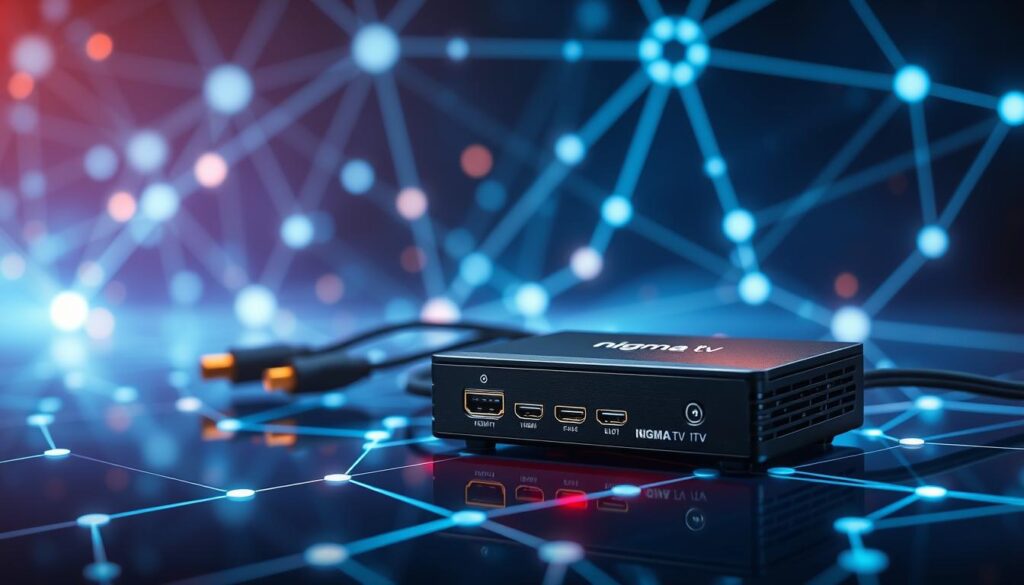
Maintaining Hardware Temperature and Ventilation
Heat is the primary enemy of any electronic device, especially those running 24/7. You must ensure your converter has adequate airflow to prevent overheating, which often leads to premature component failure. Always place your hardware in a well-ventilated area away from direct sunlight or enclosed cabinets that trap heat.
If your device feels hot to the touch, consider adding a small external cooling fan or elevating the unit to allow air to circulate underneath. Keeping the environment cool is a simple yet effective way to protect your investment. When your hardware runs at an optimal temperature, you will notice improved network stability during high-definition broadcasts.
Regular Firmware Updates and Maintenance
Software health is just as vital as physical care. Manufacturers frequently release firmware updates that patch security vulnerabilities and improve overall performance. Regularly checking for these updates ensures your device remains compatible with the latest streaming standards and the best IPTV for Firestick 2026 services.
Beyond updates, perform a routine check of your cable connections and power supply integrity. Loose cables can cause intermittent signal drops, which negatively impact your network stability. Use the following table to keep track of your maintenance schedule for a seamless experience.
| Maintenance Task | Frequency | Expected Benefit |
|---|---|---|
| Dust Removal | Monthly | Prevents Overheating |
| Firmware Check | Quarterly | Security & Compatibility |
| Cable Inspection | Bi-Annually | Signal Integrity |
| System Reboot | Weekly | Clears Cache Memory |
Conclusion
Building a robust video network requires attention to detail at every stage of the deployment process. You now possess the knowledge to select high-quality hardware from industry leaders like Kiloview or Teradek to ensure your signal remains stable across your local infrastructure.
Success depends on your ability to balance network traffic while maintaining strict adherence to your chosen streaming protocols. Consistent monitoring of your encoder settings and hardware health prevents unexpected downtime during critical broadcasts.
Take the time to test your configuration thoroughly before going live to a wider audience. Small adjustments to your bandwidth management or firmware versions often yield significant improvements in visual clarity and stream reliability.
Your commitment to these professional standards guarantees a seamless experience for your viewers. Reach out to your network administrator or hardware manufacturer if you encounter unique challenges as your system grows. You are ready to deliver high-definition content with confidence and precision.