
IPTV Smarters Pro Setup Guide (2026) – Complete Installation Tutorial
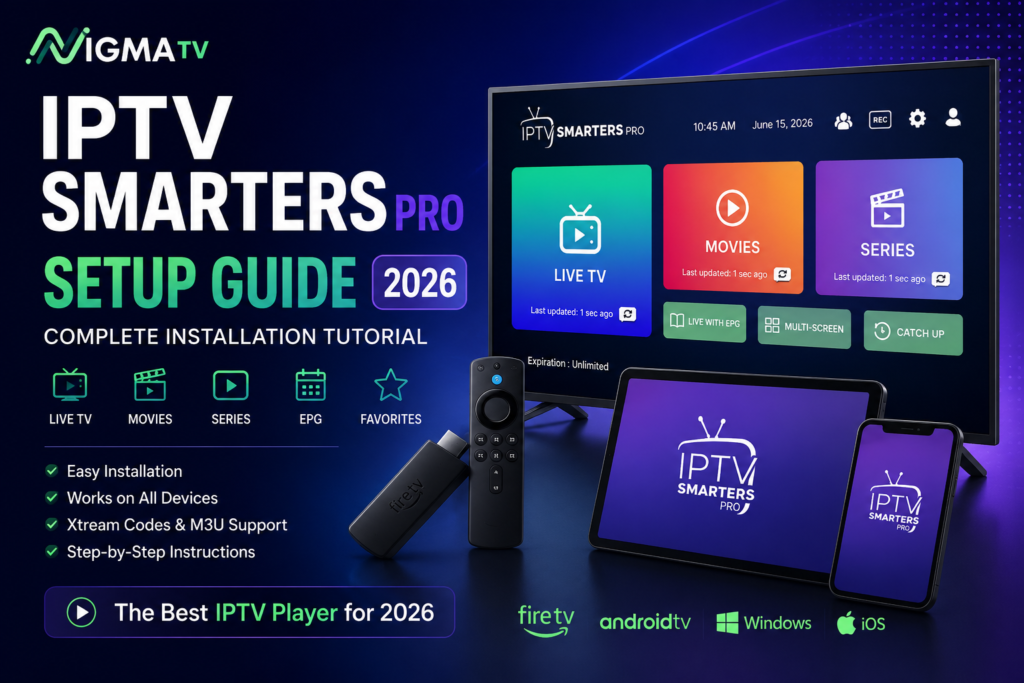
IPTV Smarters Pro is one of the most popular IPTV players available today. It provides an intuitive interface, supports multiple playlist formats, and works on a wide range of devices, including Amazon Firestick, Android TV, Smart TVs, Windows PCs, macOS, iPhone, and Android smartphones.
Unlike an IPTV provider, IPTV Smarters Pro does not include television channels or movies. Instead, it acts as a media player that allows users to access content using credentials supplied by their IPTV provider.
In this complete IPTV Smarters Pro setup guide, you’ll learn how to install the application, configure it using Xtream Codes or an M3U Playlist, explore its most useful features, and solve common issues that may occur during setup.
Whether you’re a beginner or an experienced IPTV user, this guide will help you get IPTV Smarters Pro running smoothly in just a few minutes.
What Is IPTV Smarters Pro?
IPTV Smarters Pro is an IPTV player designed to organize and stream television content provided by an IPTV service.
Instead of offering channels directly, the application allows users to log in using credentials received from their IPTV provider. Once connected, users can access live TV, movies, TV series, catch-up content (when available), and Electronic Program Guide (EPG) information.
Its modern interface, easy navigation, and excellent compatibility have made IPTV Smarters Pro one of the most trusted IPTV applications worldwide.
Discover the best IPTV services in the USA, UK, and Canada. Compare channels, streaming quality, pricing, and features to find the perfect IPTV service here : What is the best IPTV provider in America in 2026?
Main Features of IPTV Smarters Pro
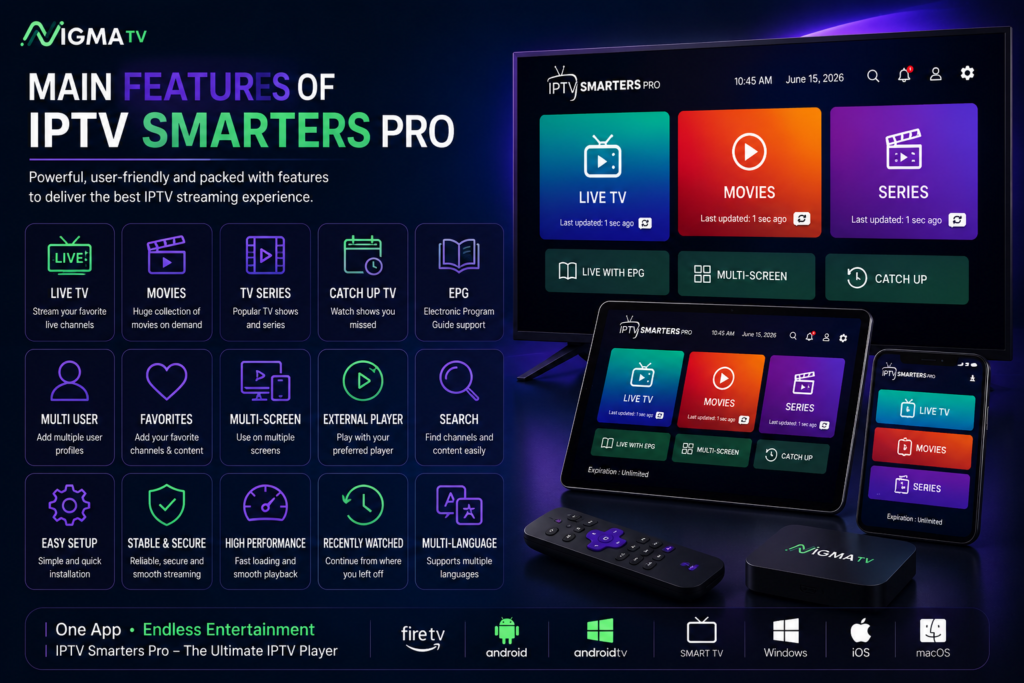
One reason IPTV Smarters Pro remains so popular is the large number of built-in features.
Some of its most useful capabilities include:
- Live TV streaming
- Movies and TV Series library
- Xtream Codes API Login
- M3U Playlist support
- Electronic Program Guide (EPG)
- Favorites management
- Multi-screen support
- External video player support
- Catch-up TV (if supported)
- Fast and responsive interface
- Multi-user profiles
- Search functionality
- Recently watched history
These features make IPTV Smarters Pro suitable for both casual viewers and advanced IPTV users.
Supported Devices
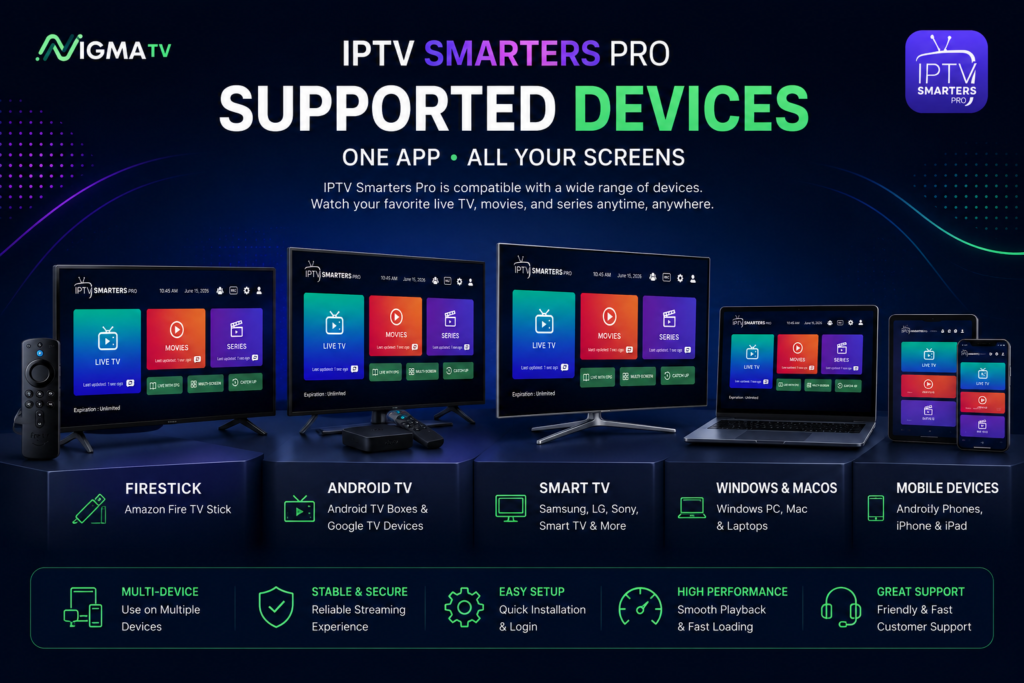
One of the biggest advantages of IPTV Smarters Pro is its compatibility across multiple platforms.
The application supports:
Amazon Fire TV Stick
Firestick remains one of the most popular streaming devices thanks to its affordability and excellent IPTV performance.
Android TV
Works perfectly on Android TV boxes, Google TV devices, and Android-based televisions.
Smart TVs
Several Smart TV models support IPTV Smarters Pro directly or through compatible applications.
Windows & macOS
Desktop users can install IPTV Smarters Pro to enjoy live television on larger screens.
Android Smartphones
Perfect for watching live television while traveling.
iPhone & iPad
The application is also available for Apple mobile devices, making it easy to access IPTV content on the go.
Why Choose IPTV Smarters Pro?
Many IPTV applications are available today, but IPTV Smarters Pro remains one of the most recommended because of its reliability and ease of use.
Key advantages include:
- Clean and modern interface
- Beginner-friendly setup
- Excellent performance
- Fast channel loading
- Wide device compatibility
- Playlist management
- EPG integration
- Stable playback
For most users, IPTV Smarters Pro offers everything needed to enjoy IPTV without unnecessary complexity.
Preparing Before Installation
Before installing IPTV Smarters Pro, make sure you have the following information from your IPTV provider:
- Username
- Password
- Server URL
- Xtream Codes API (if provided)
- M3U Playlist URL (optional)
Having these details ready will make the installation process much faster.
Related IPTV Guides
If you’re new to IPTV, these guides may also help:
Best IPTV USA 2026
👉 https://nigma.tv/bestiptv/best-iptv-usa-2026/
Best IPTV for Firestick (2026)
👉 https://nigma.tv/bestiptv/best-iptv-for-firestick-2026/
Official Resources
Official IPTV Smarters website:
Amazon Fire TV:
https://www.amazon.com/fire-tv
Android TV:
How to Install IPTV Smarters Pro on Firestick
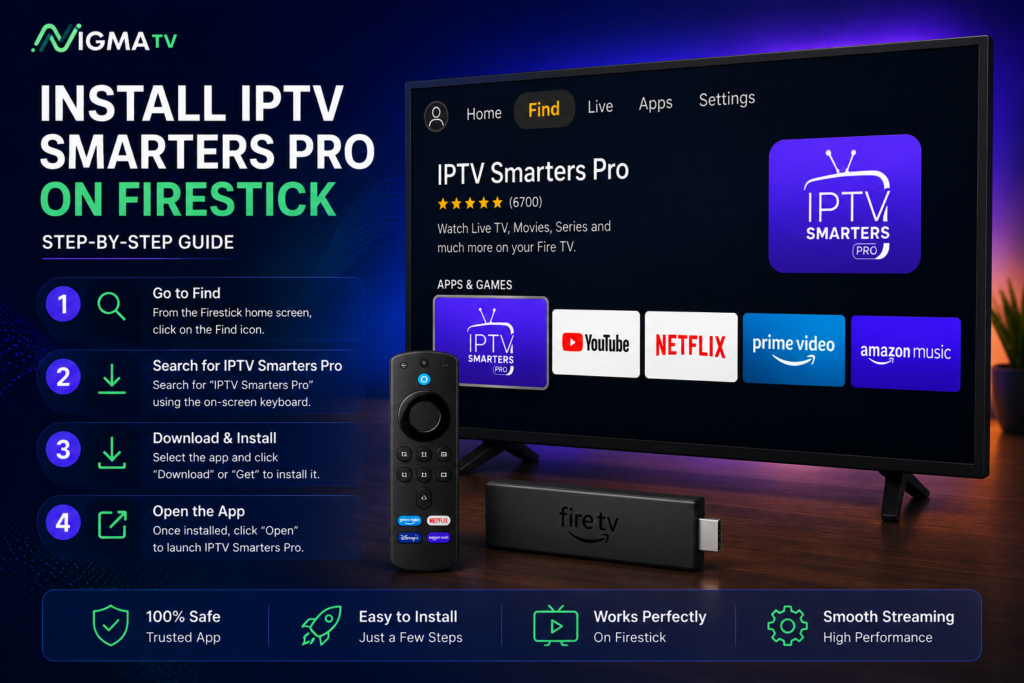
Installing IPTV Smarters Pro on Amazon Fire TV Stick is quick and straightforward. Once installed, you’ll be able to access your IPTV subscription using the login details provided by your IPTV service.
Follow these simple steps:
Step 1: Prepare Your Firestick
Connect your Fire TV Stick to your television and ensure it is connected to a stable internet connection.
Go to:
Settings → My Fire TV → Developer Options
Enable installation from trusted sources if required by your Firestick version.
Step 2: Download IPTV Smarters Pro
Download and install IPTV Smarters Pro from the official source or your preferred application marketplace, depending on your device.
Once installed, launch the application.
Step 3: Accept the Terms
When opening IPTV Smarters Pro for the first time, accept the terms and permissions required for the application to function correctly.
Step 4: Choose Your Login Method
The application supports several login methods.
The two most common options are:
- Xtream Codes API
- M3U Playlist URL
Most IPTV providers recommend using Xtream Codes because it automatically loads channels, movies, series, and the Electronic Program Guide (EPG).
Logging in with Xtream Codes API
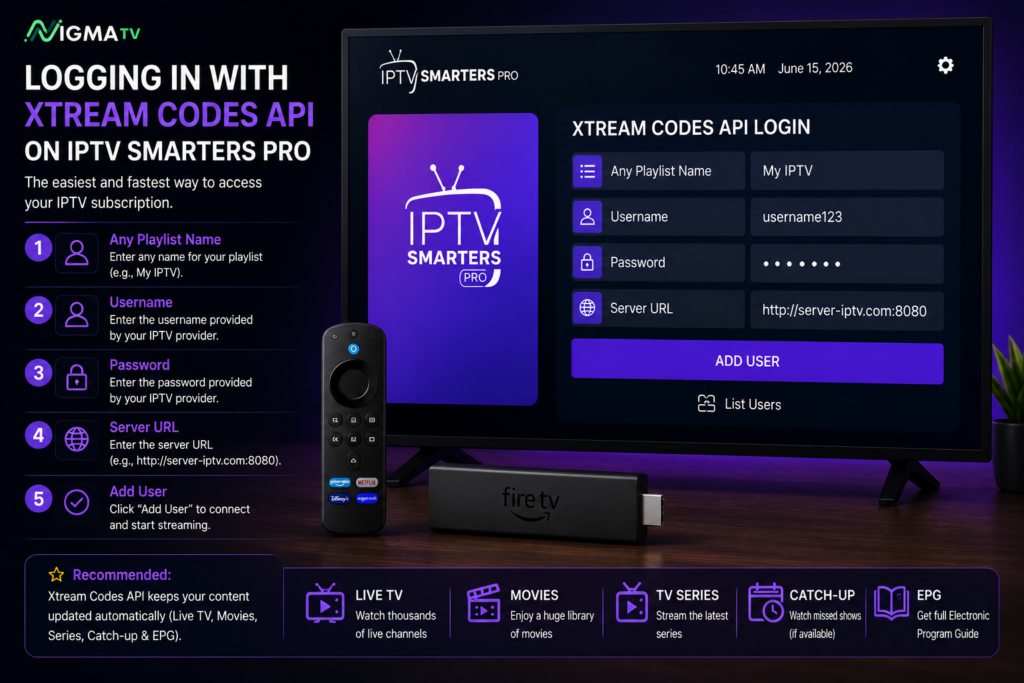
Using Xtream Codes is the easiest and fastest way to configure IPTV Smarters Pro.
Simply enter the information provided by your IPTV provider:
- Any Playlist Name
- Username
- Password
- Server URL
After entering the information correctly, press Add User.
Within a few seconds, IPTV Smarters Pro will automatically load:
- Live TV
- Movies
- TV Series
- Catch-up (if available)
- EPG
This method is recommended because updates are synchronized automatically.
Adding an M3U Playlist
Some IPTV providers supply an M3U Playlist instead of Xtream Codes.
To configure it:
- Select Load Your Playlist or File/URL
- Enter your Playlist Name
- Paste the M3U URL
- Save the configuration
After loading, IPTV Smarters Pro will download your playlist and organize your available content.
Installing IPTV Smarters Pro on Android TV
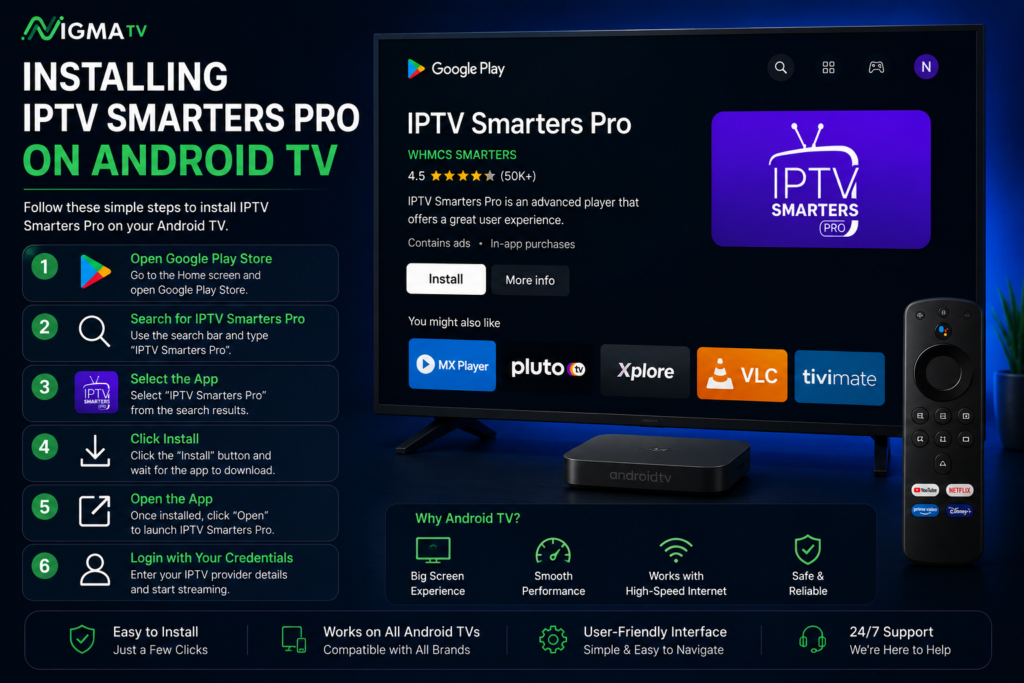
Android TV installation is very similar.
Steps:
- Open your application store.
- Download IPTV Smarters Pro.
- Launch the application.
- Accept the permissions.
- Enter your IPTV credentials.
- Wait for synchronization.
Once completed, you’ll have access to all supported IPTV categories.
Best Settings for IPTV Smarters Pro
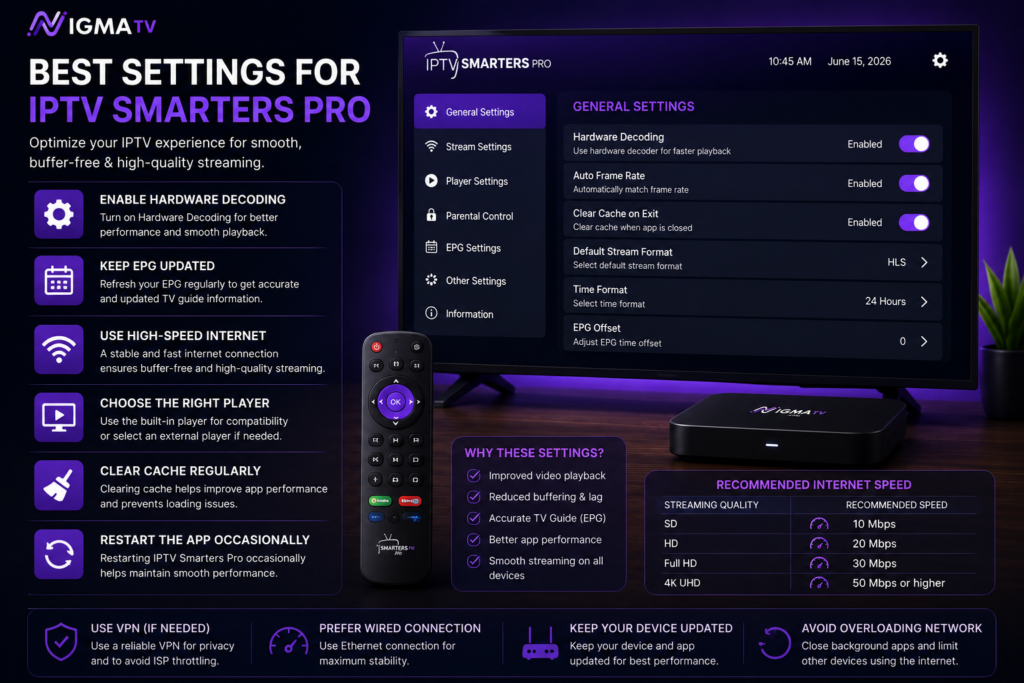
To improve performance, consider enabling the following options.
Enable Hardware Decoding
Hardware decoding improves video playback and reduces buffering on compatible devices.
Keep EPG Updated
Refreshing your Electronic Program Guide regularly ensures accurate scheduling information.
Use High-Speed Internet
Recommended connection speeds:
| Streaming Quality | Recommended Speed |
|---|---|
| SD | 10 Mbps |
| HD | 20 Mbps |
| Full HD | 30 Mbps |
| 4K UHD | 50 Mbps or higher |
Restart the Application Occasionally
Restarting IPTV Smarters Pro occasionally helps clear temporary cache and improve responsiveness.
Common Login Mistakes
Many setup problems are caused by simple typing mistakes.
Always verify:
- Username
- Password
- Server URL
- Internet connection
Even a small typo may prevent successful login.
Continue Reading
If you’re looking for the best IPTV provider after installing IPTV Smarters Pro, check our complete guide:
Or learn how to optimize your Firestick:
👉 Best IPTV for Firestick (2026)
Common IPTV Smarters Pro Problems & Solutions
Even though IPTV Smarters Pro is one of the most reliable IPTV player applications available, users may occasionally experience setup or playback issues.
Fortunately, most problems can be solved within a few minutes.
Login Failed
If you receive a login error, double-check:
- Username
- Password
- Server URL
- Internet connection
Most login issues are caused by incorrect credentials.
Buffering or Freezing
Buffering usually happens because of:
- Slow internet connection
- Busy IPTV servers
- Poor Wi-Fi signal
Solutions:
- Restart your router.
- Use a wired Ethernet connection when possible.
- Connect to a faster Wi-Fi network.
- Close unnecessary apps running in the background.
EPG Not Loading
If your TV Guide doesn’t appear:
- Refresh the EPG.
- Restart IPTV Smarters Pro.
- Wait a few minutes after adding your playlist.
- Contact your IPTV provider if the guide remains unavailable.
Black Screen
A black screen may indicate:
- Unsupported video codec
- Temporary server issue
- Device decoding problem
Try enabling Hardware Decoding inside Player Settings.
App Keeps Crashing
Possible fixes:
- Update IPTV Smarters Pro.
- Clear the application cache.
- Restart your device.
- Reinstall the application if necessary.
No Channels Showing
If categories appear empty:
- Refresh your playlist.
- Verify your IPTV subscription is active.
- Confirm your login credentials are correct.
Frequently Asked Questions
Is IPTV Smarters Pro free?
Yes. IPTV Smarters Pro can be downloaded for free. Some versions may also offer premium features depending on the platform.
Does IPTV Smarters Pro provide TV channels?
No.
IPTV Smarters Pro is only a media player. It does not include TV channels, movies, or subscriptions.
You must have an IPTV subscription from a provider.
Is IPTV Smarters Pro legal?
The application itself is legal.
Its legality depends on the content and IPTV service you use.
Which devices support IPTV Smarters Pro?
It works on:
- Firestick
- Android TV
- Google TV
- Android Phones
- iPhone
- iPad
- Windows
- macOS
- Samsung Smart TV
- LG Smart TV
Can I use Xtream Codes?
Yes.
Xtream Codes API is the recommended login method because it automatically loads channels, movies, series, and EPG.
Can I use an M3U Playlist?
Absolutely.
IPTV Smarters Pro supports both:
- Xtream Codes API
- M3U Playlist URL
Does IPTV Smarters Pro support multiple users?
Yes.
You can add multiple IPTV accounts and easily switch between them.
How do I update IPTV Smarters Pro?
Visit the official website or your device’s app store to download the latest version.
Which login method is best?
Xtream Codes API is generally recommended because it offers automatic updates, EPG support, and easier setup.
Final Thoughts
IPTV Smarters Pro remains one of the best IPTV player applications available in 2026 thanks to its clean interface, excellent device compatibility, multi-screen support, and easy setup process.
Whether you’re using Firestick, Android TV, Smart TV, Windows, or mobile devices, IPTV Smarters Pro delivers a fast and user-friendly streaming experience.
To enjoy the best experience, pair IPTV Smarters Pro with a reliable IPTV provider offering stable servers, HD and 4K content, and responsive customer support.
Another Guides :
👉 Best IPTV Service in 2026? Why NIGMA TV Is Gaining Attention
👉 Best IPTV Service 2026: The Only Guide You Need After Testing 10 Providers